Working with a thread
A thread is where you develop one line of research with Silico. It holds the conversation, the context you provide, Silico's questions and plans, and the experiments and results that follow. See Threads for the underlying model.
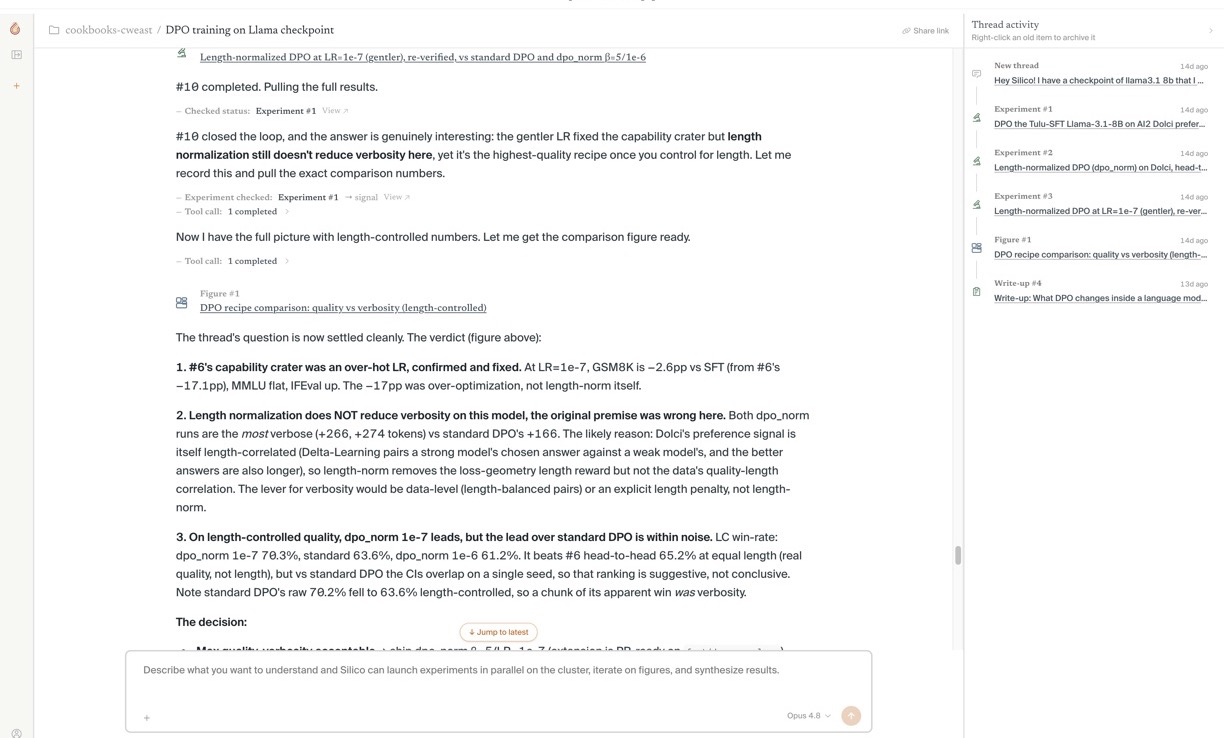
Start a thread
Click New thread, choose the folder where the work belongs, and select a model if your organization offers more than one.
Start with the direction you want to explore. You do not need to write a complete experiment specification in the first message. For example:
I want to understand how months of the year are represented in Gemma 2 2B.
Silico can ask for missing details, inspect the available material, and propose a concrete plan. Add constraints up front only when they would materially change the approach.
Attach context at the point of use
Use the + menu in the composer when Silico needs material it cannot infer from the conversation:
- Upload files adds files from your computer.
- Browse resources opens the Resources panel, where you can search or browse material Silico can already access.
The Resources panel separates context by source:
- Filesystem shows files and folders on your available compute clusters and connected cloud storage. Search by name or path, then use + or drag an item into the composer.
- GitHub lets you paste a repository URL or search public repositories. Connect your GitHub account to browse and attach private repositories that you can access.
- Hugging Face lets you find models and datasets from the Hub.
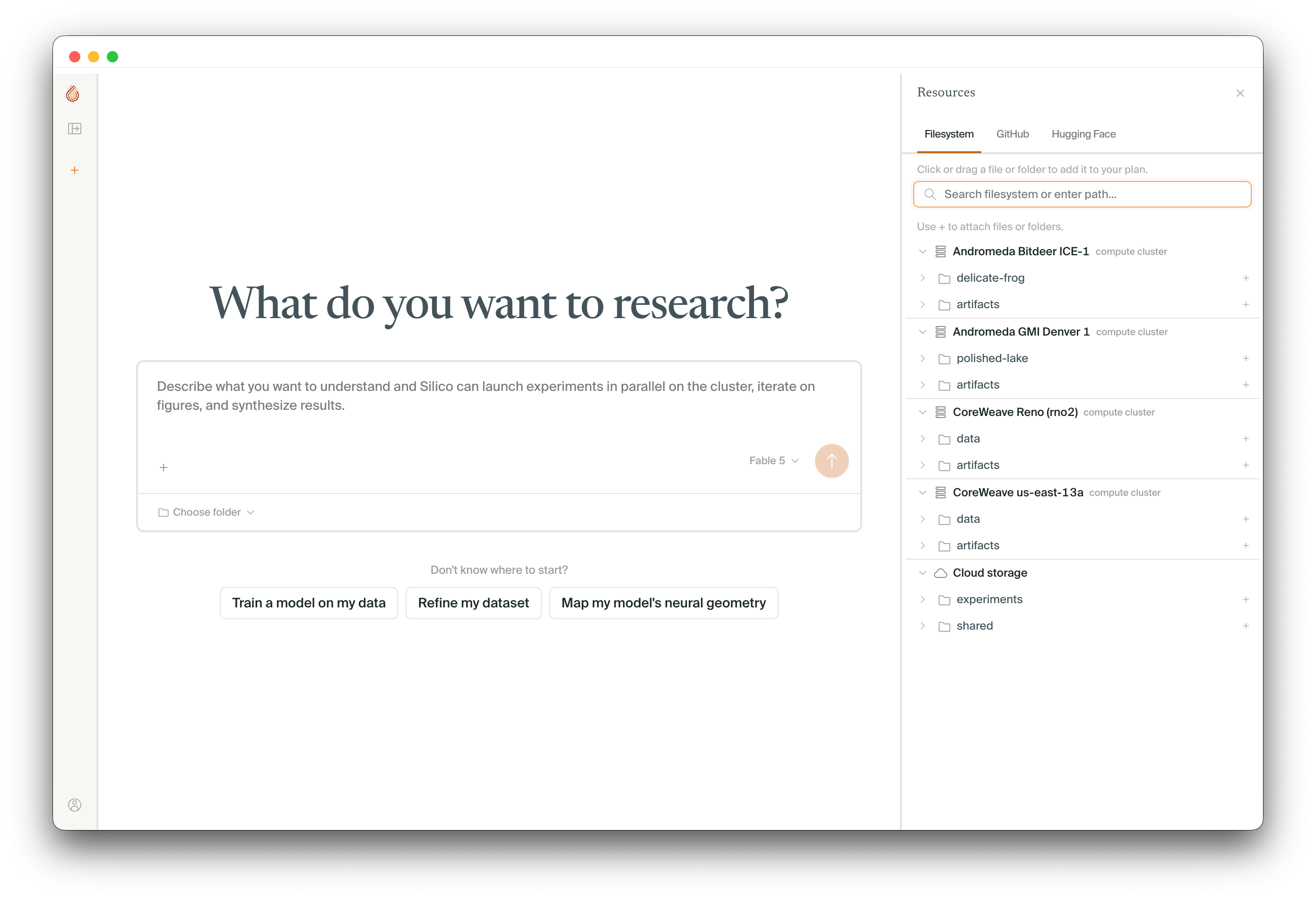
Attaching a GitHub repository gives Silico the repository as working context; it does not paste the entire codebase into your message. In the accompanying message, name the branch, path, or subsystem that matters when the whole repository would be ambiguous. If GitHub is not connected, select Connect in the panel. You can manage the connection later from Settings → Integrations.
Selected items appear as context chips above the composer. Remove anything you do not want included, then send the message that explains how Silico should use it. The context travels with that message and remains visible in the thread record.
Attach the smallest useful unit. A repository or folder is better than a pile of individual files when Silico needs to understand how code fits together; a single result or dataset is better when that is the only evidence relevant to the next step. See Resources and artifacts for the distinction.
You can also drag another thread from the sidebar into the composer. This is useful when a new investigation depends on an earlier conversation and its linked experiments.
If a resource requires a credential or integration that is not configured, Silico can ask for it in the thread. Configure it in Settings, then continue the same conversation.
Steer the work through conversation
Treat the thread as an active research notebook, not a one-shot prompt. Within one thread, you can:
- Review the literature. Ask Silico to find relevant papers, compare methods, recover established baselines, or summarize where the literature agrees and disagrees. Use follow-up questions to narrow the review around your model, dataset, or hypothesis.
- Create diagrams. Ask Silico to visualize a model architecture, data or activation flow, experiment design, or comparison between approaches. Diagrams can include tables, charts, and interactive controls, and remain available from Thread activity as the conversation continues.
- Design experiments. Turn a question into a plan with concrete inputs, controls, measurements, and decision criteria. Ask for a small pilot when the data path or metric needs validation before a larger run.
- Run and steer experiments. Launch related experiments from the same thread, answer decisions as they arise, and redirect the work when a confound or counterexample changes the question.
- Interpret and compare results. Ask what the evidence supports, what remains uncertain, how two experiments differ, or what result would falsify the current explanation.
While Silico is working, you can type and send a follow-up to queue it. Use the stop control when the current direction should be interrupted rather than supplemented.
When reviewing a plan, highlight the exact passage you want to discuss and leave a focused comment. This preserves the local context and is usually clearer than describing the location in a long message. See Review and launch a plan for the full plan workflow.
Answer decisions as they appear
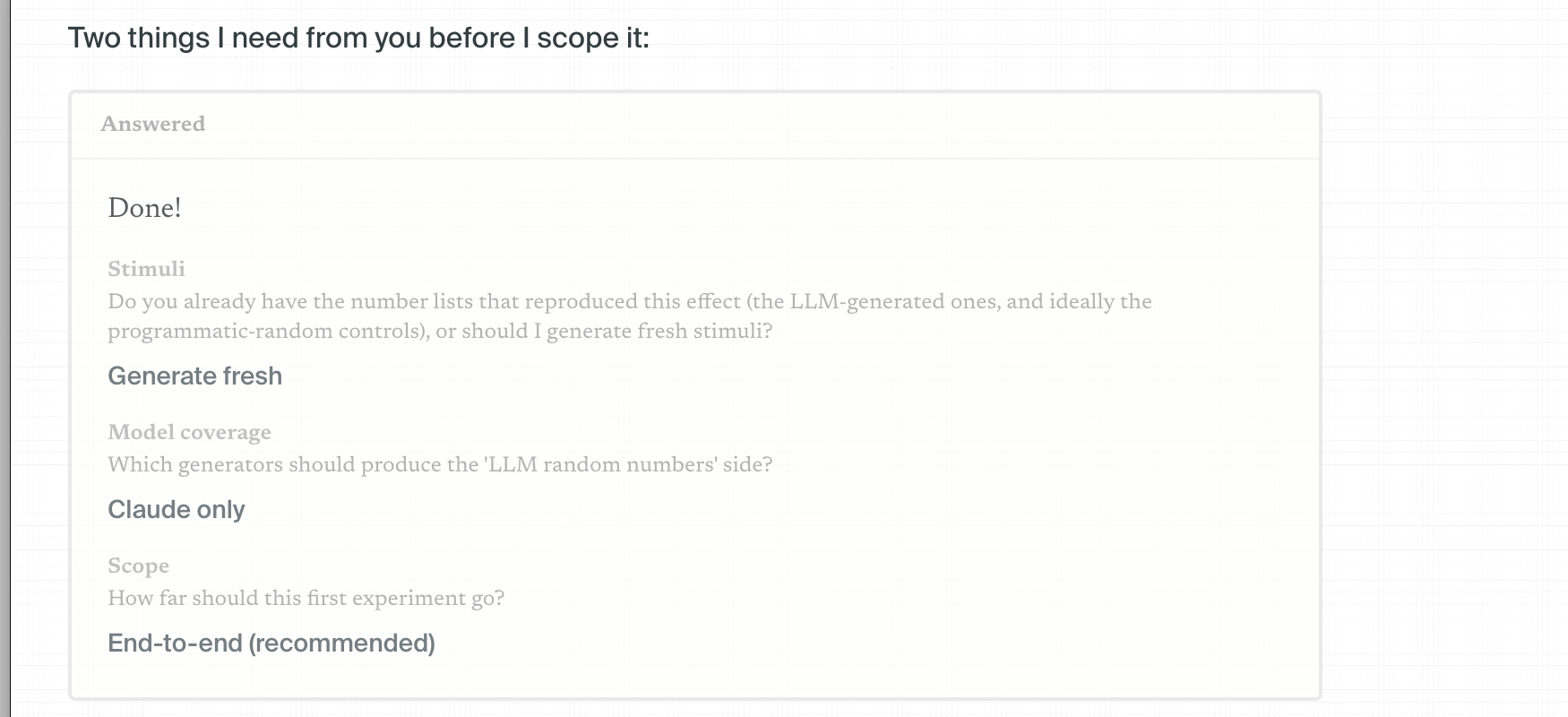
Silico may pause to ask which checkpoint, split, metric, scope, or output you want. Select an option or choose Write your own answer when the available choices miss an important constraint. When there are several questions, review and submit the complete set before Silico continues.
Your answers remain visible in the thread, making the assumptions behind later plans and experiments easy to recover.
Keep one research direction together
Use the same thread to revise the question, review plans, launch related experiments, interpret results, and request direct follow-ups. Silico can use the thread's prior reasoning and linked experiments when planning the next step.
The Thread activity panel is the thread's table of contents. It provides a chronological view of plans, diagrams, experiments, and results; select an item to return to it without searching through the transcript.
Start a new thread when the new question can stand on its own. If understanding it depends on the reasoning or evidence already produced, keep it in the current thread or attach the earlier thread as context.
Next step
When Silico proposes a plan, continue with Review and launch a plan.