Members and roles
Organization membership controls who can use the organization's Silico environment and who can change its shared configuration.
Membership does not automatically expose every research thread. Threads remain private to their owner until someone opens a share link. See Sharing threads when someone needs access to specific research.
Roles
Silico has three organization roles:
| Action | Member | Admin | Owner |
|---|---|---|---|
| Use the organization and view its member list | ✓ | ✓ | ✓ |
| View shared organization settings and usage | ✓ | ✓ | ✓ |
| Invite members or admins | ✓ | ✓ | |
| Change Member and Admin roles | ✓ | ✓ | |
| Remove non-owner members | ✓ | ✓ | |
| Change organization-level settings | ✓ | ✓ | |
| Transfer organization ownership | ✓ |
An Admin can manage the roster and shared settings but cannot change or remove the Owner. The Owner has the same administrative access plus the ability to transfer ownership. Some billing and compute actions also depend on how the organization is configured.
Open the member list
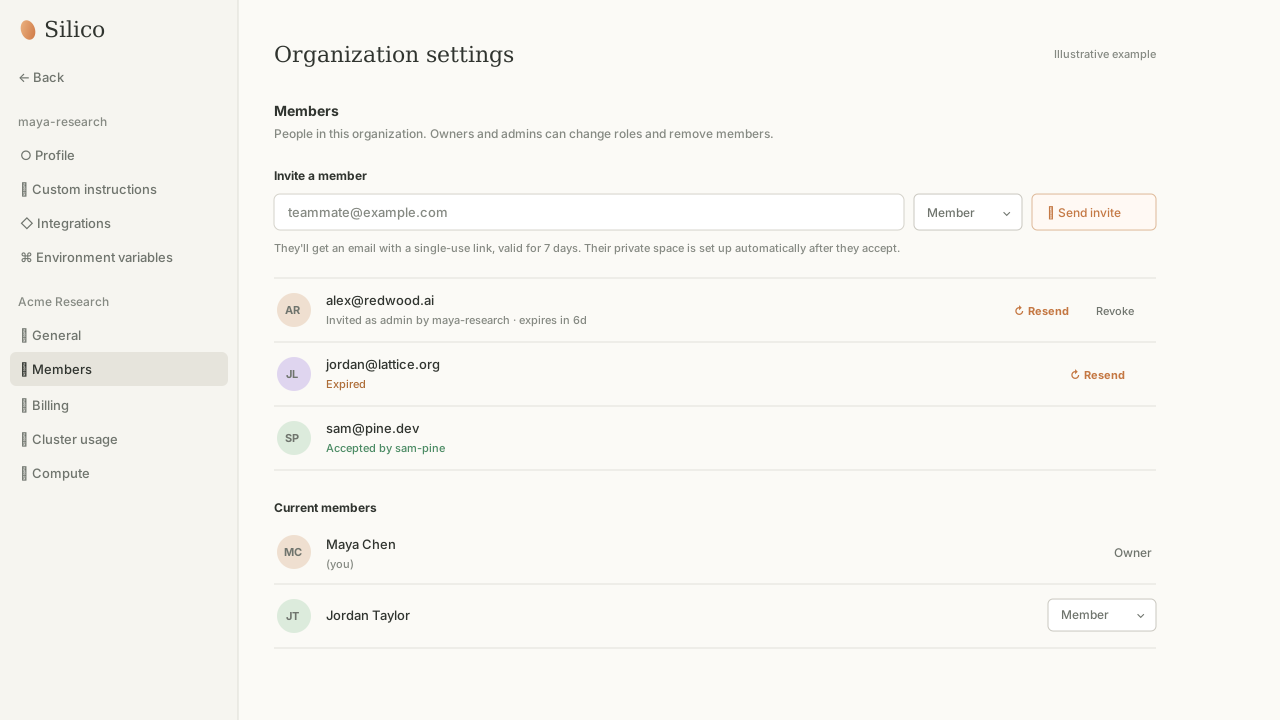
Open Settings, then select Members under your organization in the settings sidebar.
Every organization member can view the roster. Owners and admins also see the invitation form, role menus, and removal controls.
Invite someone
In Members, enter the person's email address, choose Member or Admin, and select Send invite.
Silico emails a single-use invitation link that expires after seven days. The recipient opens the link and signs in with the GitHub account they intend to use with Silico. After they accept, Silico adds them to the organization and sets up their private space automatically.
The role is granted when the invitation is accepted. Owner is not available as an invitation role; ownership must be transferred to an existing member.
Manage pending invitations
The Members page keeps the invitation history alongside the roster:
- Pending invitations show the selected role and their remaining validity.
- Resend sends a fresh link with a new seven-day window. The previous link stops working.
- Revoke invalidates a pending link immediately.
- Expired invitations can be resent.
- Accepted invitations show which Silico account redeemed the link.
Treat the invitation link as access to the organization. If it may have been forwarded or sent to the wrong address, revoke it and send a new invitation.
Some self-hosted or legacy deployments may show a directory search instead of email invitations. In that flow, only people who have already signed in to the deployment can be added.
Change a role
Use the role menu beside a non-owner member to switch between Member and Admin. The change applies to the person's organization-level administrative access; it does not transfer ownership of their threads or other work.
Admins can manage other Member and Admin rows. The Owner row is fixed and cannot be changed through the role menu.
Grant Admin only to people who should manage the roster and shared organization settings, including integrations, custom instructions, environment configuration, and available billing or compute controls.
Transfer ownership
Only the current Owner can transfer ownership. The new Owner must already be a member of the organization.
Use Make owner beside the intended member and confirm the transfer. The new member becomes Owner, and the previous Owner becomes an Admin. This is the only supported way to change the Owner.
Remove a member
Owners and admins can remove a non-owner member from the roster. Silico asks for confirmation before applying the change.
Removal ends the person's organization access. In a Silico-hosted organization, it also starts offboarding their private Lab access. It does not transfer ownership of their work or connected external resources, so preserve or share anything the organization still needs before removing them.
The Owner cannot be removed. Transfer ownership first if the current Owner needs to leave the organization.