Settings
Most people can start a thread without changing any settings. Open Settings when your work needs a private service, a runtime key, or instructions that should persist across threads.
Open Settings
Open the account and organization menu in the lower-left corner of the desktop app, then choose Settings. The sidebar keeps two scopes together:
- The section under your account name contains your personal custom instructions, integrations, and environment variables.
- The section under the organization name contains shared settings. Owners and admins manage shared integrations, environment variables, and compute.
Use a personal setting for an account or credential you own. Use an organization setting only for a service account or value the organization intentionally owns.
Personal integrations and environment variables override same-named organization defaults for your work. Organization custom instructions are the default until you save personal instructions.
Connect integrations
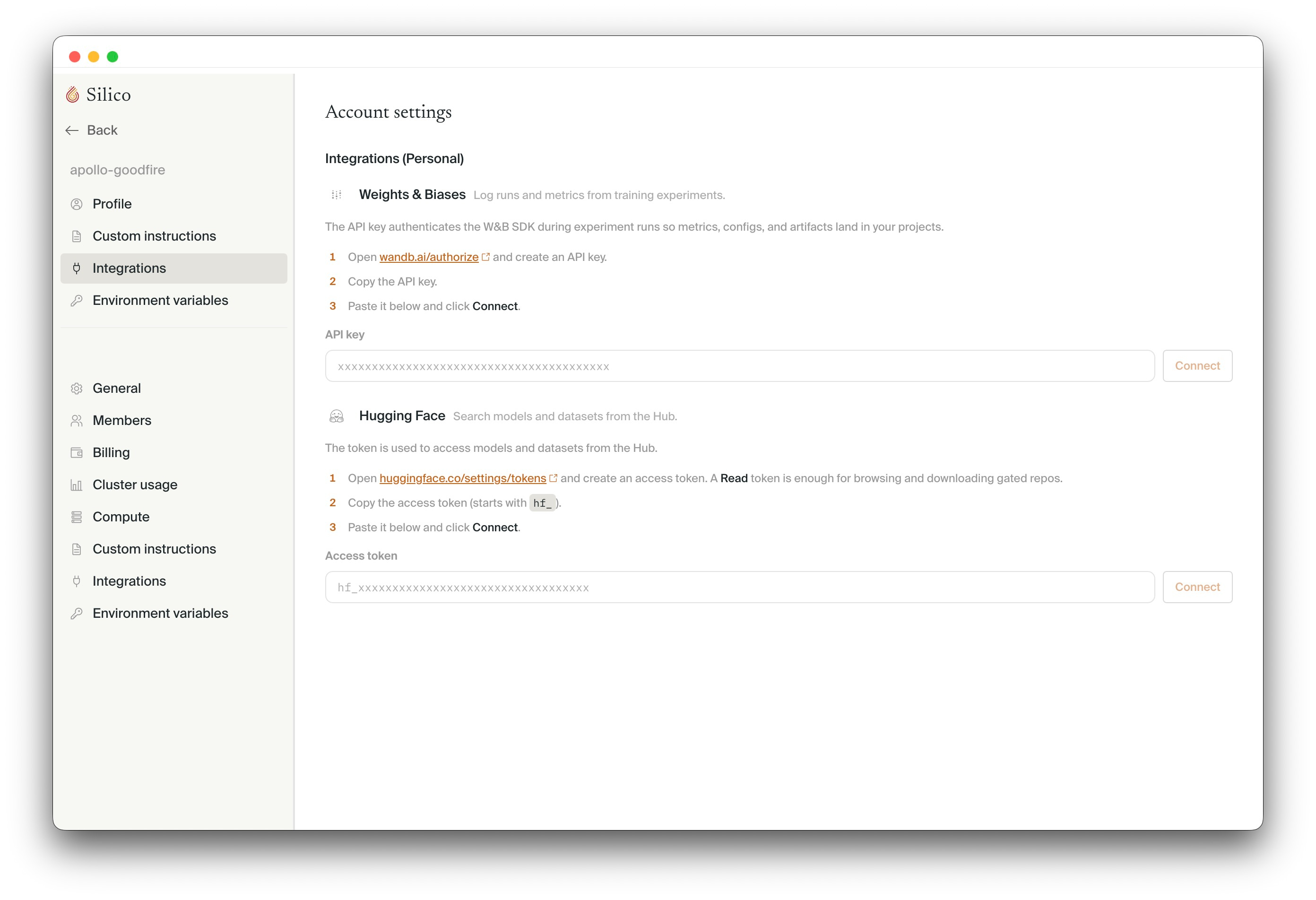
Use Integrations for services with a dedicated connection card:
- Hugging Face provides access to private or gated models and datasets. Public Hub resources do not require a token. A read token is enough for browsing and downloading gated repositories.
- Weights & Biases lets experiments log runs, metrics, configs, and artifacts to your W&B projects.
Paste the token into the matching card and choose Connect. Silico verifies it before saving it. Integration-managed values stay behind their cards rather than appearing as ordinary environment variables.
Add environment variables
Use Environment variables for other runtime configuration and secrets, such as OPENAI_API_KEY, OPENROUTER_API_KEY, or ANTHROPIC_API_KEY.
Values are masked after saving. Organization variables are inherited by members; adding a personal variable with the same name overrides the organization value for your work.
Never paste a secret into a thread, plan, custom instruction, repository, or result.
Add custom instructions
Use Custom instructions for guidance that should apply across many threads: evaluation practices, coding conventions, safety requirements, or project constraints.
Organization instructions apply by default to every member. Saving personal instructions replaces that default for your threads; Reset to organization restores the shared instructions. Keep one-off requests in the thread that needs them.
Compute usually needs no setup
Most researchers use Goodfire-hosted on-demand compute, which is already available. There is no default cluster to configure: when an experiment needs compute, the planner asks which available option to use and saves that choice with the experiment.
Owners and admins can link an additional Slurm cluster under Organization settings → Compute. Members only need to take action when a linked cluster uses individual accounts and asks them to connect their own identity. See Compute for cluster setup.
Next step
Continue with Working with a thread.