Monitor and steer an experiment
After you launch a plan, Silico opens an experiment record beside the thread. The experiment keeps the execution detail and evidence together; the thread remains the place for the research question, context, and follow-up work.
Choose the surface that answers your question
Open an experiment from the thread's Thread activity panel or from the sidebar. The available tabs depend on what the run produced:
- Results is the published answer. Use it for the headline, evidence, review, and export actions. See Review and synthesize results for a deeper pass through the result.
- Timeline is the durable research record: the original plan, checkpoints, decisions, deviations, results, and critic review.
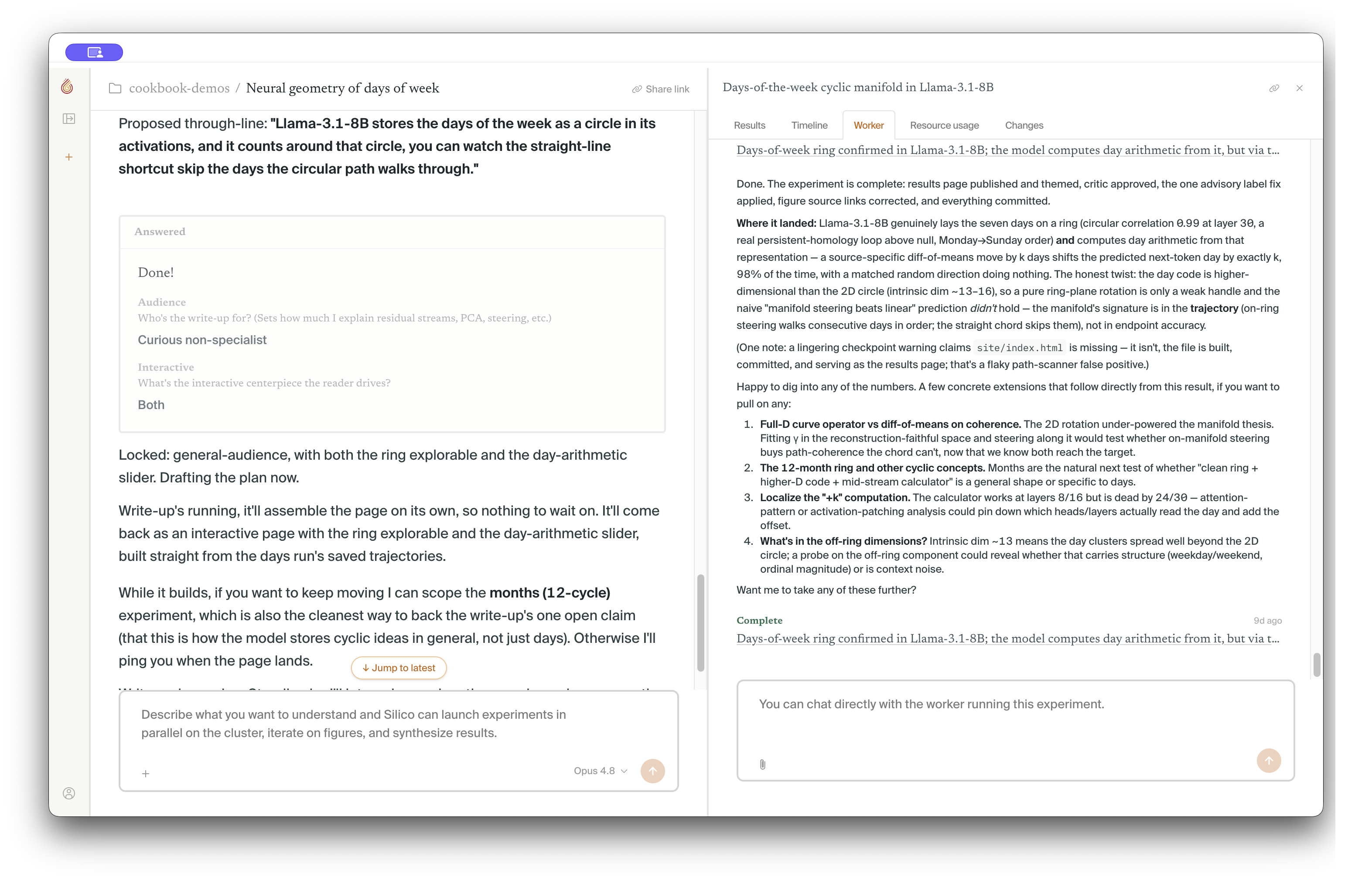
- Worker is the execution conversation. Use it to understand what the worker is doing and to steer active work.
- Resource usage shows experiment usage and the jobs behind it, with filters for running, completed, and failed work.
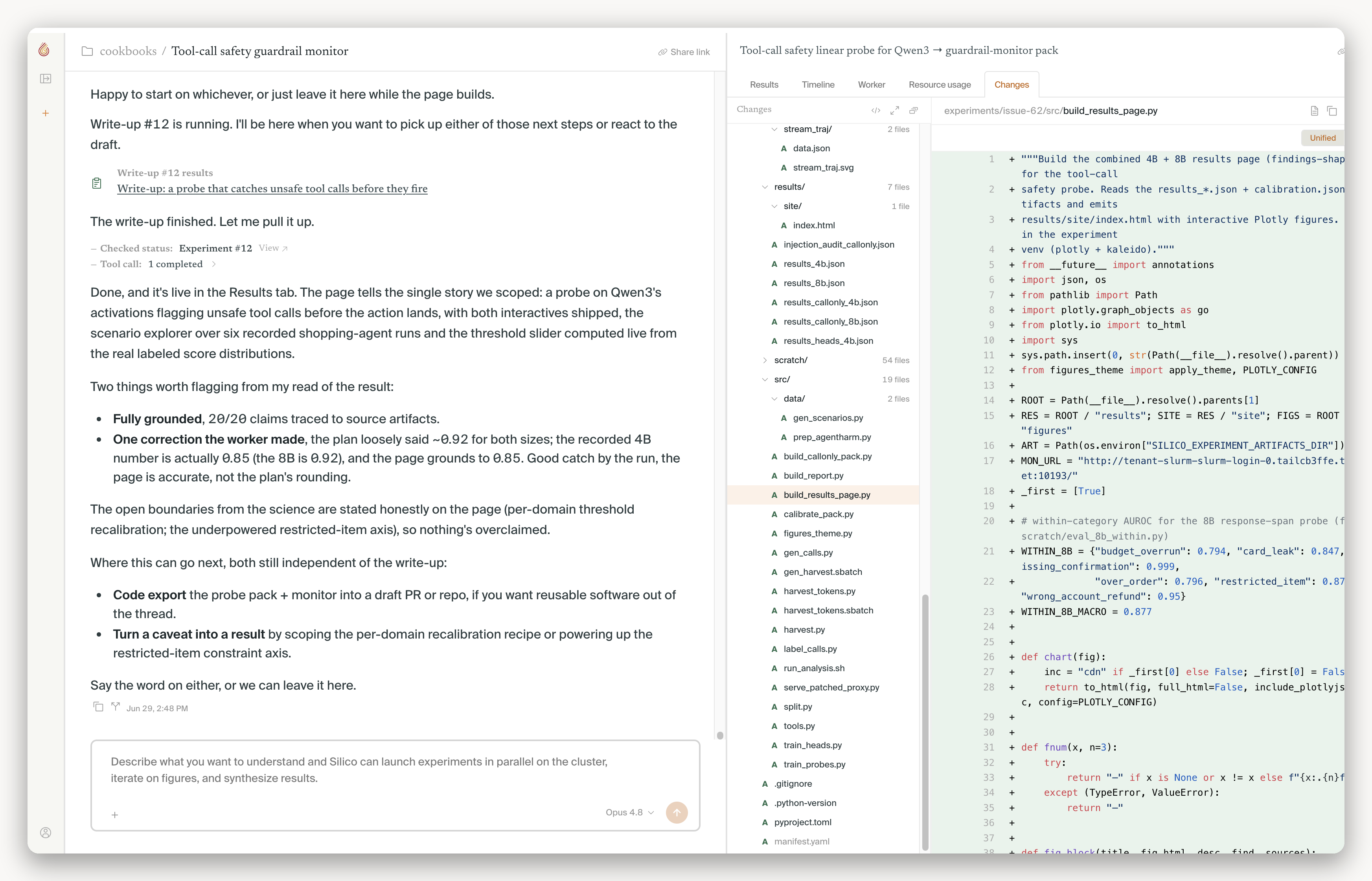
- Changes shows files added, changed, or deleted in the experiment worktree. Open a file to inspect it, copy its path, download it, or chat about it.
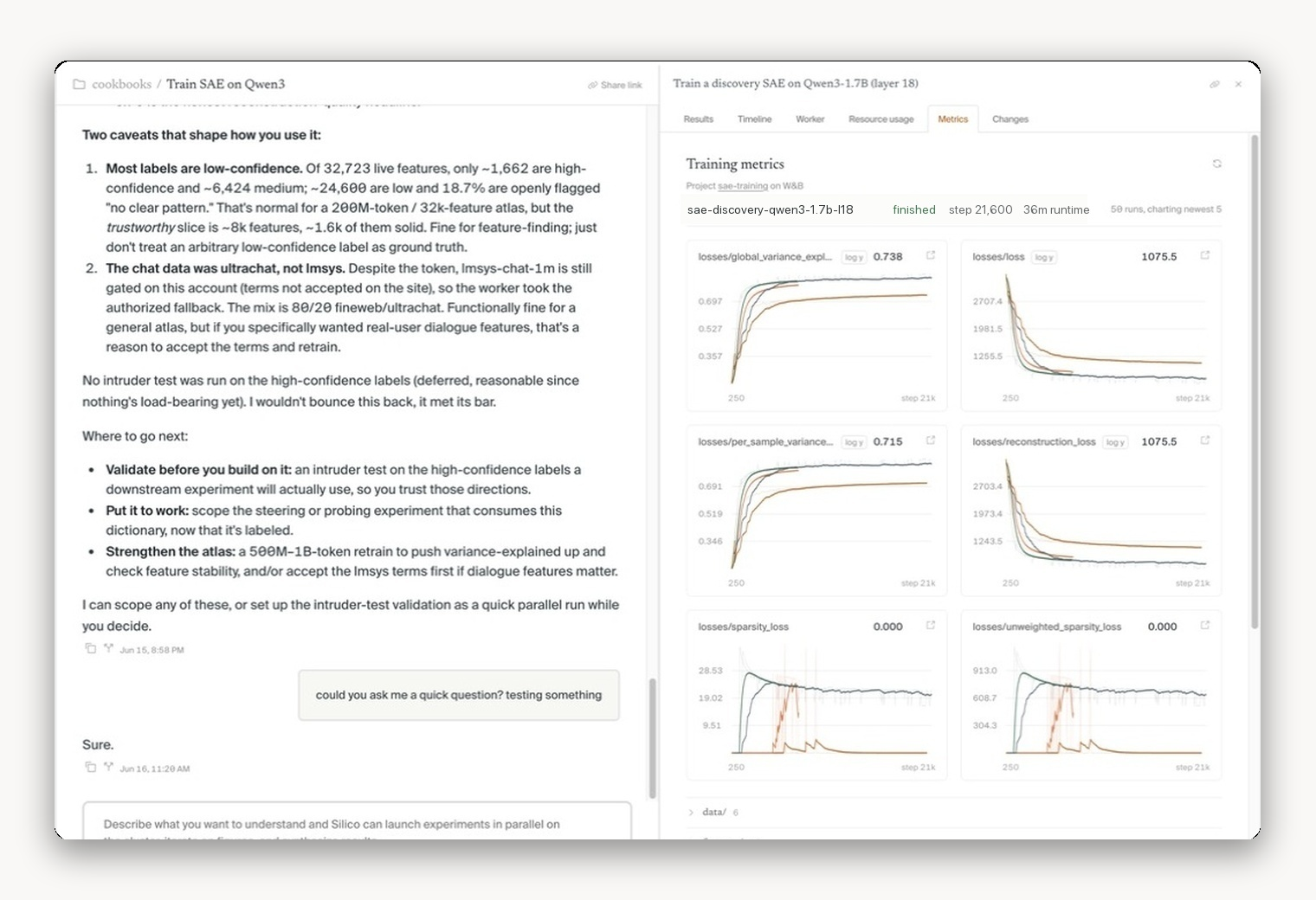
- Metrics appears when the experiment links a training or evaluation run, such as a Weights & Biases run.
The status in Thread activity is a useful signal, not a substitute for reading the latest record. A decision-needed or blocked state usually needs attention; ordinary progress and critic review usually do not.
Read the Timeline before you intervene
The Timeline is the best place to reconstruct what happened. Start with the plan, then read the checkpoints and decisions that changed the approach. Expand Read more when a card contains the evidence or reasoning you need. Results and critic review belong at the end of that same sequence, so you can compare the intended work with the work that actually ran.
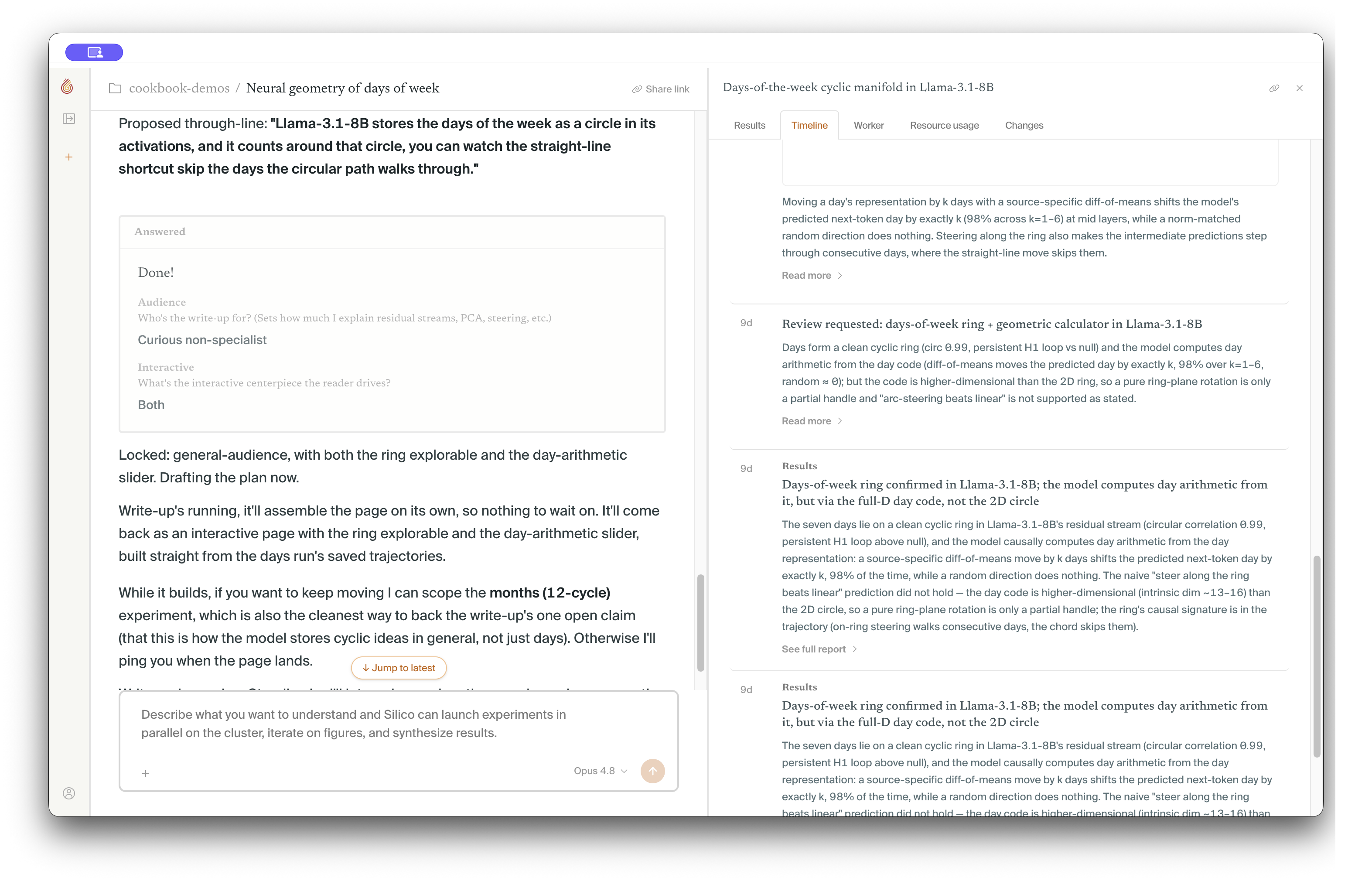
When a result surprises you, ask three questions before steering:
- What changed from the plan?
- Which decision or checkpoint introduced the change?
- What evidence would distinguish a real finding from a data, metric, or implementation issue?
That keeps a correction attached to the existing record instead of turning an undocumented change into a new conclusion.
Answer decisions with the smallest useful constraint
When the worker reaches a choice it cannot safely make, the Timeline records the decision. Read the checkpoint and the work immediately before it, then select an option or write your own answer. State the tradeoff or success criterion that matters; do not repeat the whole plan.
For example:
Use the held-out templates for the comparison. Keep the training split only for debugging, and stop before the full sweep if the control fails.
Your answer becomes part of the experiment record and gives later checkpoints the context they need.
Steer active work through Worker
Use Worker when the current execution is headed in the wrong direction, missing a key comparison, spending too much compute, or needs information only you have. Say what should change and why. Preserve the part of the run that remains valid:
Keep the completed baseline. Before scaling the intervention arm, rerun 20 examples with the tokenizer fix and compare them against the saved baseline outputs.
Worker follow-ups are for execution-level changes. Return to the parent thread when the research question, hypothesis, or plan needs to change. Do not silently replace the original hypothesis halfway through a run; preserve it and make the changed condition explicit in a follow-up plan.
Check compute and files when the result needs context
Open Resource usage to check whether a run is still consuming compute, which jobs completed, and whether anything failed. Usage and job status answer operational questions; they do not explain whether the result is scientifically trustworthy.
This example has 2.0 GPU-hours across 10 completed jobs. The job list makes the run's shape legible: smoke tests, harvests, and a canceled job are visible together instead of being reduced to a single total.
Inspect linked W&B runs
When an experiment logs a training or evaluation run to Weights & Biases and links it back to Silico, a Metrics tab appears. Use it to inspect the run's metrics, configuration, and logged artifacts alongside the experiment's Timeline and Results. This is especially useful when Silico is analyzing a run produced by an existing training or evaluation pipeline.
Metrics are optional: an experiment without a linked W&B run will not show the tab. Connect W&B under Settings → Integrations before launching work that needs it, and keep the Silico Timeline as the record of the research decisions and interpretation.
Open Changes when you need to trace a result to the code or artifacts that produced it. Select a file to inspect its diff, open the worktree in the IDE, or use Chat about this file for a focused question. For the broader evidence review, continue with Review and synthesize results.
Stop, continue, or start a follow-up
Stop an experiment when it is using the wrong data, producing evidence you no longer trust, or spending resources on a question that has changed. Record why so the partial run is not mistaken for a completed test.
If the run is valid but incomplete, let it finish and launch a focused follow-up from the same thread. Keep related experiments together when they share a question; start a new thread when the question can stand on its own.
Next step
When the experiment publishes a result, continue with Review and synthesize results.